Cursor
Set up Cursor with Hyde Inference.
Chat and agent mode in Cursor can run through the gateway using Cursor's OpenAI base URL override. Tab autocomplete and Auto mode stay on Cursor's built-in models.
Before you start
Install Cursor if you don't have it yet. Get it at cursor.com/download.
Cursor requirements
- BYOK works on the Free plan. You don't need a paid Cursor subscription for chat or agent mode through the gateway.
- You stay logged into Cursor. Requests route through Cursor's servers for prompt building, so the gateway must be publicly reachable.
- Chat and agent mode go through the gateway. Tab autocomplete never does (it uses Cursor's built-in models), Auto mode doesn't use BYOK, and Cmd+K works with non-thinking models only.
- The override captures all OpenAI-format traffic. While it's on, built-in OpenAI models in the picker hit the gateway and fail there. When you need them, toggle the override off and clear the OpenAI API Key field first. Otherwise Cursor sends your Hyde key to api.openai.com.
Setup
1. Get your key
Generate an API key in the dashboard's Keys tab. It's shown once, so copy it before you close the page. Got a setup link from your invite email instead? Open it and treat the link like a password. Don't forward it.
2. Point Cursor at the gateway
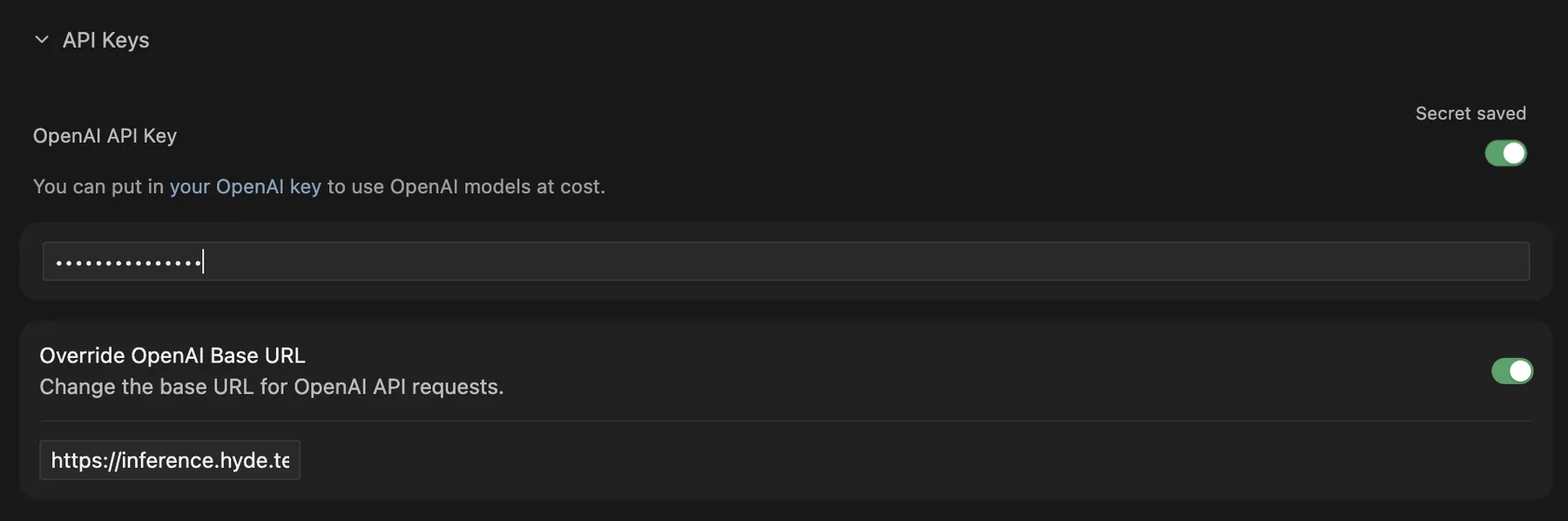
Open Cursor Settings (Cmd+Shift+J / Ctrl+Shift+J) and go to Models. Paste the sk-… key you copied into OpenAI API Key, then enable Override OpenAI Base URL and enter:
https://inference.hyde.tech/v1Keep the /v1 and leave off /chat/completions, since Cursor appends the path itself.
3. Add models
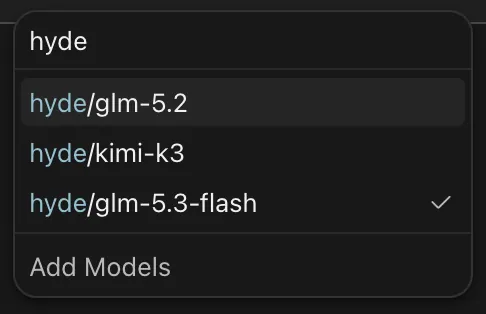
In the Models list, click + Add model and enter the exact alias from the Models page. Add one entry per alias you want. To verify, pick the model in the composer's picker and send a chat message. The reply should stream.

Models
The picker shows only the aliases you added by hand. The Models page says what each model is good for.
If it breaks
Added a model but chat fails
Select the gateway model in the composer's picker. The alias list is manual, and built-in models remain selectable.
401 / invalid key
The key was revoked. Generate a fresh one in the Keys tab and paste it in again.
Built-in OpenAI models stopped working
This is expected while the override is on. The override routes all OpenAI-format traffic to the gateway. When you need the built-in models, toggle the override off and clear the OpenAI API Key field first. Otherwise Cursor sends your Hyde key to api.openai.com.
Model picker has no Custom Endpoint option
Custom Endpoint needs a recent Cursor version. Update Cursor from its settings if the entry is missing.