Claude Desktop
Set up Claude Desktop with Hyde Inference.
This guide helps you set up Claude chat, cowork, and code on your Claude Desktop. For using Claude Code in the terminal, see the Claude Code guide.
Video walkthrough
Before you start
Install Claude Desktop if you don't have it yet. Get it from claude.ai/download.
You also need a Hyde API key. Generate one in the dashboard's Keys tab, or open the setup link from your invite email. Treat the link like a password: don't forward it.
Setup
1. Enable Developer Mode
Developer Mode shows the third-party-inference panel. On macOS, go to menu bar, then Help, then Troubleshooting, then Enable Developer Mode. On Windows, open the ☰ menu in the top left, then Help, then Troubleshooting, then Enable Developer Mode.
2. Write the gateway config
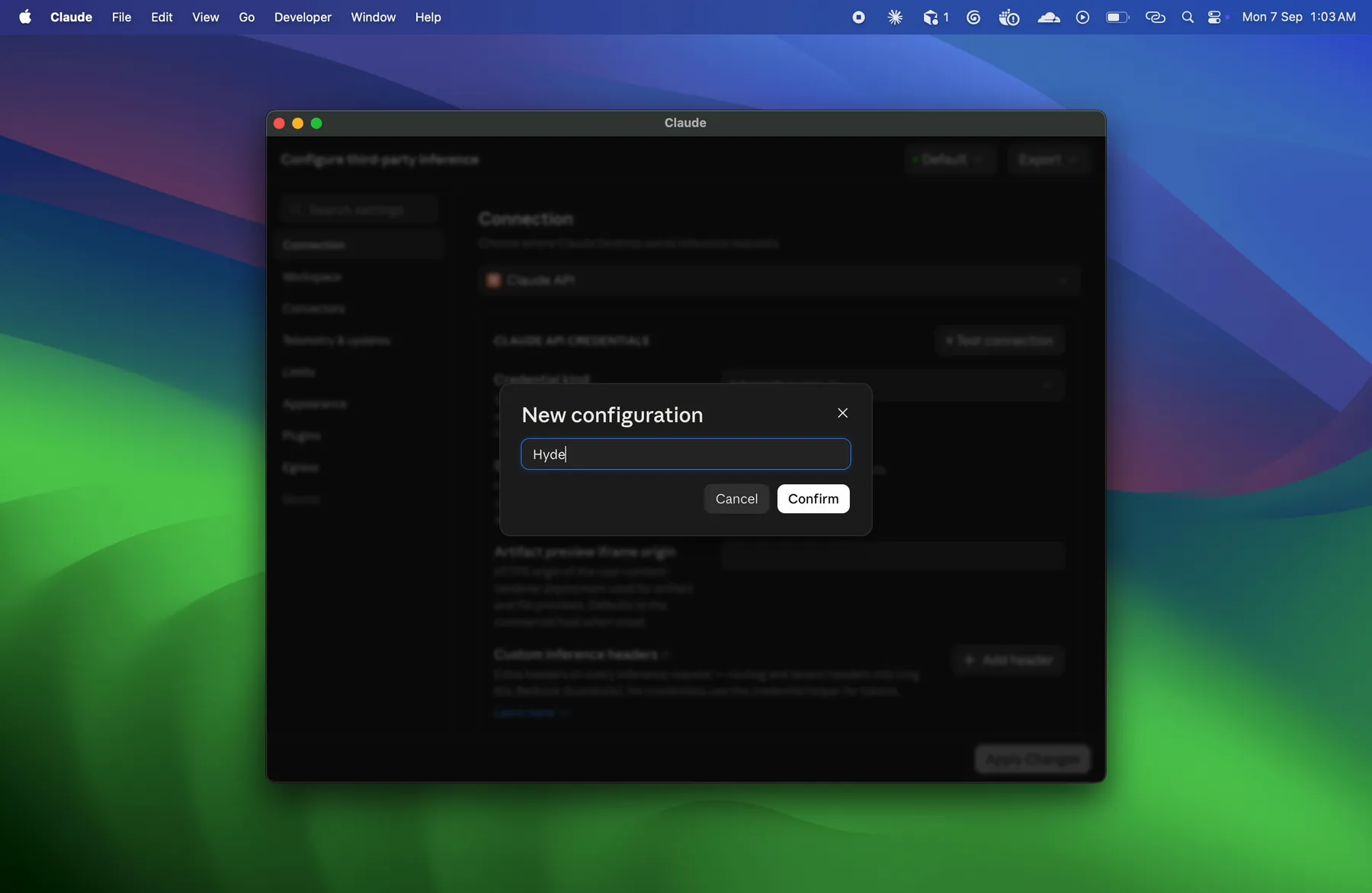
In the panel, choose New configuration, name it Hyde Gateway, and confirm. In the Connection tab, pick Gateway as the credential kind. Set Gateway base URL to https://inference.hyde.tech, paste your key into Gateway API key, set Gateway auth scheme to bearer, and hit Test connection.
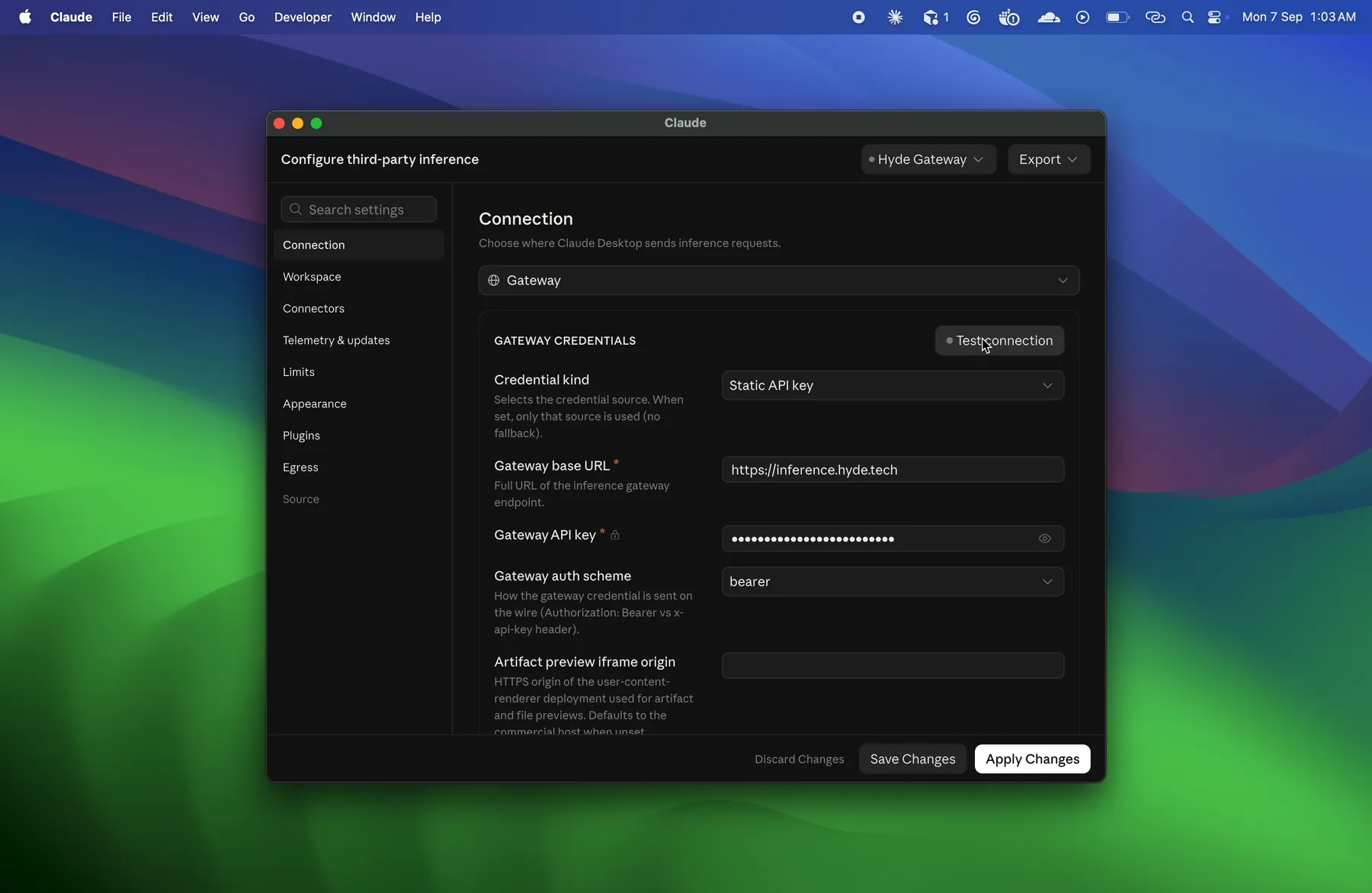
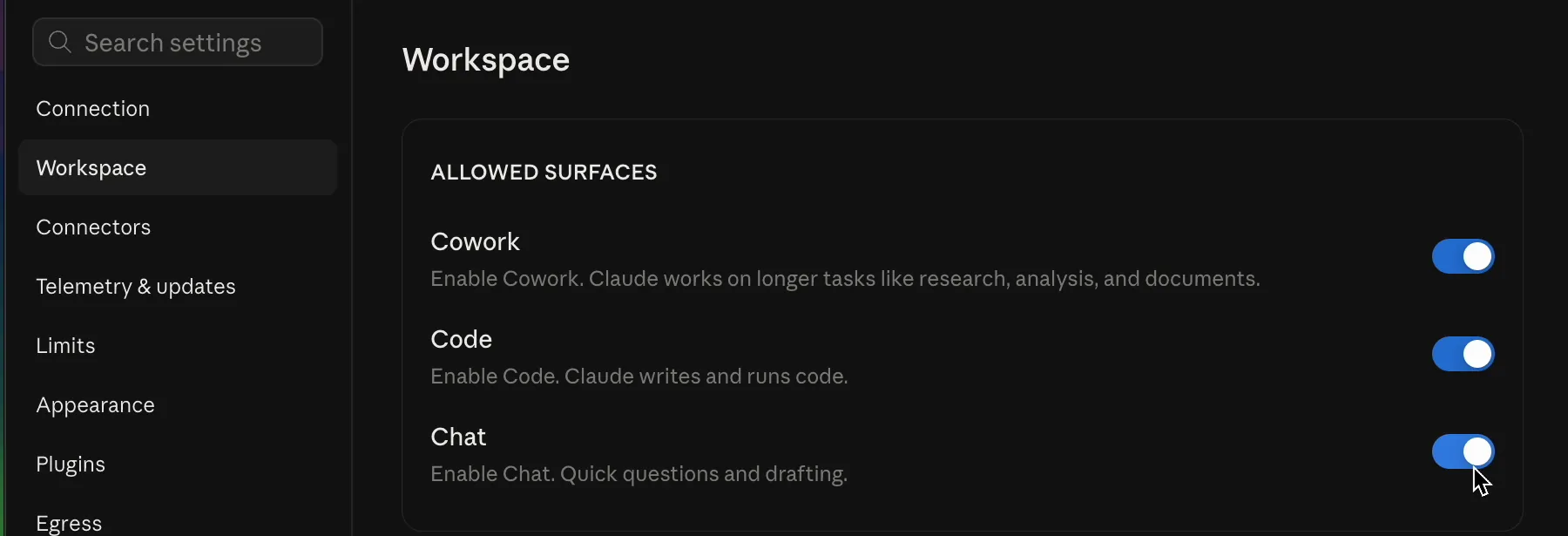
Still in Settings, open the Workspace tab and make sure Chat is enabled under Allowed surfaces (Cowork and Code too, if you'll use them). Then hit Apply Changes. The app relaunches on its own.
Prefer the terminal? This command writes the same new config (replace sk-PASTE-YOUR-KEY with your real key):
mkdir -p "$HOME/Library/Application Support/Claude-3p/configLibrary"
CFG="$HOME/Library/Application Support/Claude-3p/configLibrary/hyde-gateway.json"
cat > "$CFG" <<'EOF'
{
  "inferenceProvider": "gateway",
  "inferenceCredentialKind": "static",
  "inferenceGatewayBaseUrl": "https://inference.hyde.tech",
  "inferenceGatewayApiKey": "sk-PASTE-YOUR-KEY",
  "inferenceGatewayAuthScheme": "bearer",
  "modelDiscoveryEnabled": true
}
EOF
chmod 600 "$CFG"
echo "✅ Config written. Now fully quit the desktop app (Cmd+Q) and reopen."
Windows (PowerShell): this command writes the same new config:
mkdir -Force $env:LOCALAPPDATA\Claude-3p\configLibrary | Out-Null
@'
{
  "inferenceProvider": "gateway",
  "inferenceCredentialKind": "static",
  "inferenceGatewayBaseUrl": "https://inference.hyde.tech",
  "inferenceGatewayApiKey": "sk-PASTE-YOUR-KEY",
  "inferenceGatewayAuthScheme": "bearer",
  "modelDiscoveryEnabled": true
}
'@ | Set-Content -Path $env:LOCALAPPDATA\Claude-3p\configLibrary\hyde-gateway.json -Encoding UTF8
Write-Host "Config written. Now fully quit the desktop app and reopen."The command contains your API key and lands in your shell history. On Windows, PowerShell keeps a plaintext history file. On shared machines, edit the file in an editor instead of pasting the key into the terminal.
Both paths write a new hyde-gateway.json into the config library. Leave modelDiscoveryEnabled on. It refreshes the picker at every launch.
3. Restart and discover
Apply Changes relaunches the app on its own. If it doesn't, fully quit and reopen it. On macOS press Cmd+Q. On Windows, close the window. It exits fully. At every launch the model picker auto-populates from the gateway, so new models show up without touching the config.
Models
The picker mirrors the gateway's live catalog. The current lineup lives on the Models page.
If it breaks
Picker shows no Hyde models
Developer Mode is off, or the config's modelDiscoveryEnabled is not true. Check both, then restart the app.
401 / invalid key
The key was revoked or mistyped. Re-check the credential in the config, or generate a fresh key in the Keys tab.
Requests still go to Anthropic
The inferenceProvider isn't set to gateway in the active config. Reopen the config file and confirm the fields from step 2.